
For digitized home videos
Split digitized home videos into separate clips
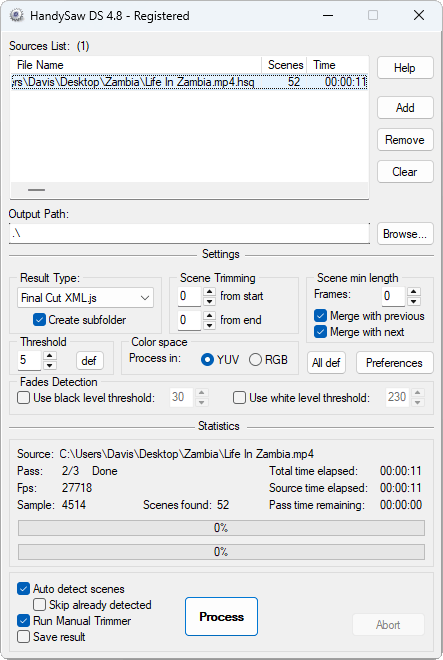
Digitizing a tape usually leaves you with a single file that runs for an hour or more. HandySaw DS finds where each recording begins and saves every scene as its own clip. Then the moments you care about are easy to find and share.
Click to enlarge
Two ways to find the scenes
The method depends on how the tape was recorded and captured.
MiniDV and Digital8: by recording date
DV cameras store the date and time of every frame on the tape. When the tape is captured over FireWire into an AVI file, this information stays inside. HandySaw DS reads it and turns every press of the record button into a separate clip. The clips can be named after the date and time they were shot.
VHS, Hi8 and other video: by picture
Analog tapes carry no recording date. In this case HandySaw DS analyzes the picture itself and marks the places where the scene changes. Camera flashes are ignored, so a birthday party with lots of photos stays in one piece.
Already digitized without splitting?
Maybe the tapes were captured years ago, or a digitizing service returned one file per tape. Some capture programs can split by date during capture, yet only when that option was switched on at the time. HandySaw DS works with the finished file, so nothing has to be captured again. Your original file is never changed. The clips are written as new files.
How it works
1. Add your files
Drag the captured files into the program window. You can also right-click them in Windows Explorer and choose Detect scenes by HandySaw DS.
2. Let it find the scenes
Press Process and HandySaw DS scans each file on its own.
3. Check the result
The built-in Manual Trimmer shows every scene it found. Merge two scenes, split one in a chosen place, delete what you do not need or give a scene a name. With 99 undo levels, a wrong click costs nothing.
4. Save the clips
Each scene becomes a separate file. DV is copied without re-encoding and keeps exactly the quality of the capture. Other video can be saved as MP4.
A whole box of tapes
Put all the captures in the list and leave the computer working overnight. In quiet mode a damaged file does not stop the queue; HandySaw DS notes the error and moves on to the next one. For a paper overview of a tape, Clip Sheet prints a visual report of all its scenes. Run a digitizing service? See batch processing for studios.
Questions about splitting home videos
Do I need video editing experience?
No. Add the files, press Process, and the clips appear in the output folder. If you decide to edit later, the scene list can be exported to most video editors, Adobe Premiere and DaVinci Resolve among them. All output formats
Which video files can I use?
Splitting by recording date needs DV captured into AVI. Detection by picture works with almost any file Windows can play, including AVI, MPEG, MP4 and MOV.
Does it run on a Mac?
HandySaw DS runs on Windows only.
Will it change my original files?
Never. The source file stays untouched and every clip is written as a new file.
What can the free demo do?
Everything, with two limits: up to five files in the list and up to 15 saved clips per file. Detection still runs on the whole file, so you see the real number of scenes before buying. Demo limits in detail
Try it on one of your tapes
One-time purchase with all future updates included.