
For tape digitizing services
Split customer tapes into clips automatically, overnight
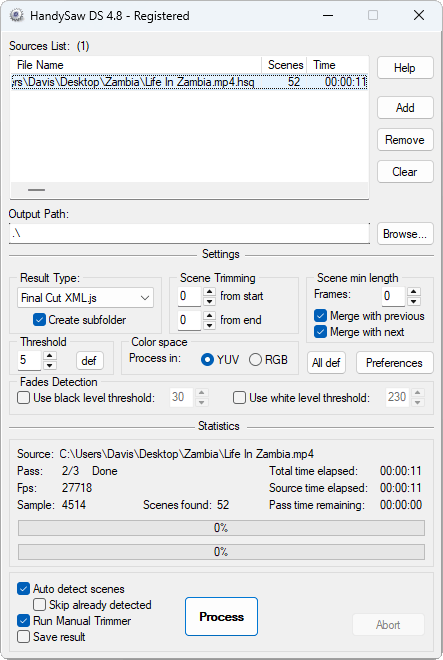
Every customer brings a box of tapes and expects separate clips back, one per event. After the capture itself, cutting those long files by hand is the slowest part of the job. HandySaw DS takes it over and works through the whole queue while the studio is closed.
Click to enlarge
Where it saves time
Unattended batch processing
Add the day's captures to the list and start the run before leaving. In quiet mode a damaged tape does not stop the queue. HandySaw DS writes the error next to that file and carries on with the next one.
Clips named by recording date
For DV and Digital8 tapes captured to AVI, every camera start becomes its own clip.
A naming template such as [RECSTAMPDATE] [RECSTAMPTIME] turns the shooting date and time into the file name,
so customers can find a birthday or a holiday without opening every file.
Processing log
A CSV log records each processed file together with the detection method used. In the morning you can see at a glance that every tape went through.
Clip Sheet for the customer
Clip Sheet builds a visual report of all scenes on a tape. Print it or save it as images and hand it over with the files as a table of contents.
No quality loss on DV
DV clips are copied straight from the capture without re-encoding. Analog captures in other formats can be saved as MP4.
A typical night from the command line
The command line covers all settings, so HandySaw DS fits into the scripts and scheduled tasks you already run. This single line processes every capture in a folder:
HandySawDS /s /x /q /f /r3 /o"D:\Done" /a"D:\Captures\*.avi" /p
- /a"D:\Captures\*.avi"
- adds every AVI file in the capture folder to the list
- /s
- detects the scenes and saves the result right after start
- /r3
- saves each scene as a separate file
- /o"D:\Done" /f
- writes the clips to the output folder, in a subfolder for each tape
- /q /p
- suppresses error dialogs and keeps the processing log
- /x
- closes the program when the queue is finished
When a tape needs a closer look
Some recordings will not split perfectly on their own. For those, the Manual Trimmer shows every detected scene with its boundaries. Merge two scenes or split one at the right frame, then save the clips again. The original capture is never modified, so a second attempt is always possible.
Licensing for a business
Commercial use is allowed. One license covers one running copy of the program, whether it is operated by a person or started from a script. A studio running two batch jobs at the same time needs two licenses. Each license is a one-time purchase and includes all future updates. Full licensing terms
Test it on a real customer tape
The free demo has every feature, with up to five files in the list and up to 15 saved clips per file. Detection still runs on the whole file, so you see the real scene count of a full tape. Demo limits in detail
Let the next batch of tapes split itself
Windows only. One-time purchase with all future updates included.